Info & Access
Overview
Configure basic roadmap details, access levels, and visibility settings.
Controls who can view or edit the roadmap, how work items are handled, and what information is visible to users.
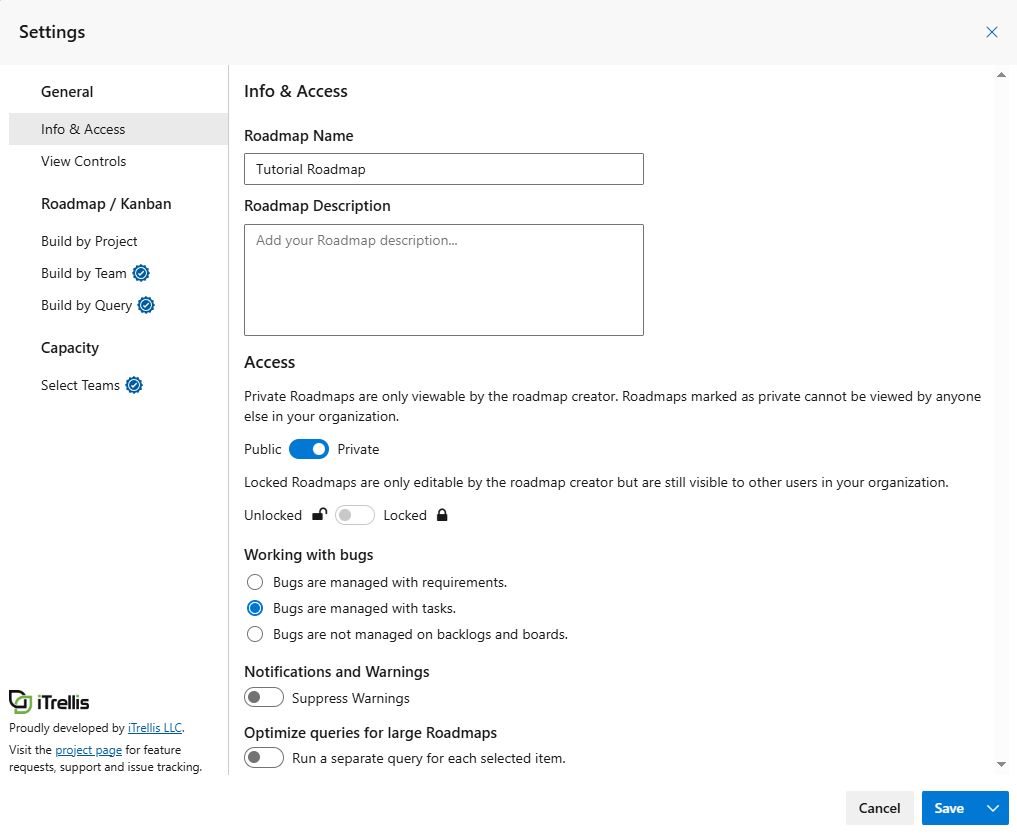
Name / Description
- Roadmap Name: Name the roadmap (only editable by owner / searchable in Roadmap Directory)
- Roadmap Description: Description of the roadmap (only editable by owner / searchable in Roadmap Directory)
Access
- Access: Roadmap access is set to private by default.
- Public: Anyone in the organization can view, edit or copy it.
- Private: Only the roadmap creator can view it. Not visible to anyone else in the organization.
- Locked: Visible to others in the organization, but only the creator can edit or copy it.
Working with bugs
- Bugs are managed with requirements: Bugs are treated like backlog items (requirements).
- Bugs are managed with tasks: Bugs are treated like tasks rather than backlog-level items.
- Bugs are not managed on backlogs and boards: Bugs are excluded from all backlog/board views
Notifications and Warnings
- Suppress Warnings: Hide warnings from displaying at the top of the current Roadmap.
Optimize queries for large Roadmaps
Enable this option only when loading roadmaps that contain a very large number of child Work Items (typically 10,000+ child Work Items).
When enabled, Portfolio++ executes a separate query for each selected Work Item instead of a single large query. This can allow roadmaps with large numbe of child work items to load, but it also increases the number of requests sent to Azure DevOps.
Do not enable this option when more than 100 Work Items are selected. A query is executed for each selected Work Item, enabling this option on large selections/queries can result in Azure DevOps rate limiting and slower overall performance.
Recommended when:
- You have fewer than 100 selected Work Items.
- Each selected Work Items contain thousands of child Work Items.
- Roadmap loading is slow due to the volume of child Work Items.
Not recommended when:
- More than 100 Work Items are selected.
- The roadmap contains fewer than 10,000 child Work Items.
- You are not experiencing performance issues when loading the roadmap.
When enabled, a loading bar displays progress along with the number of Work Items loaded.
Save / Save As
- Save: Save changes to the current roadmap and close settings.
- Save As: Create a new roadmap by copying the current roadmap, including its views and unsaved settings. The original roadmap remains unchanged.