Dependency Map
Overview
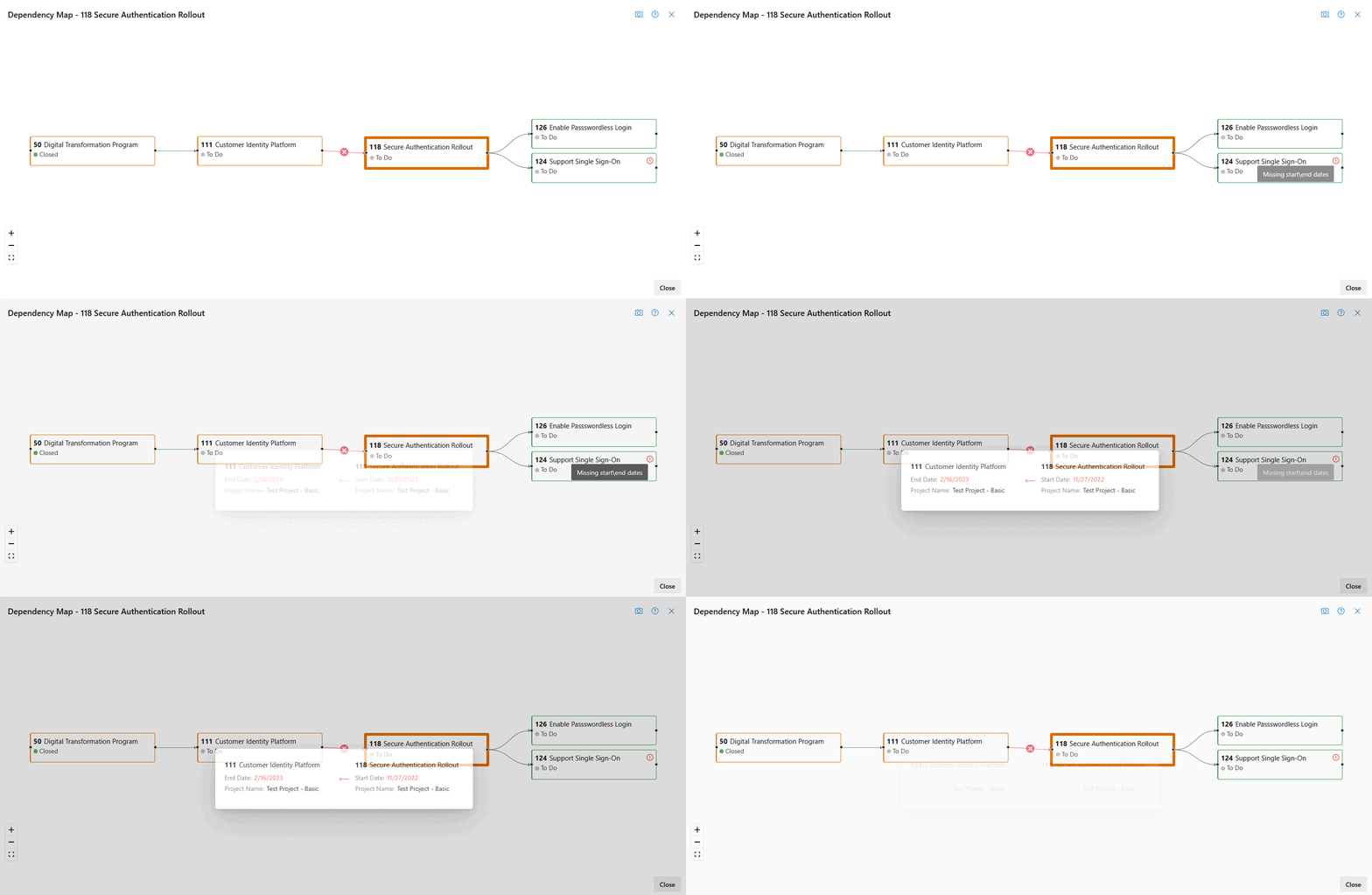
Dependency Map provides a visual representation of Work Item dependencies, making it easier to understand what work is blocking progress and what work depends on completion of a selected item.
The selected Work Item is displayed in the center of the view, with predecessors shown to the left and successors shown to the right. Additional dependency levels are included to help visualize the broader dependency chain.
Opening the Dependency Map
Before using Dependency Map, Show Dependencies must be enabled in Roadmap Options.
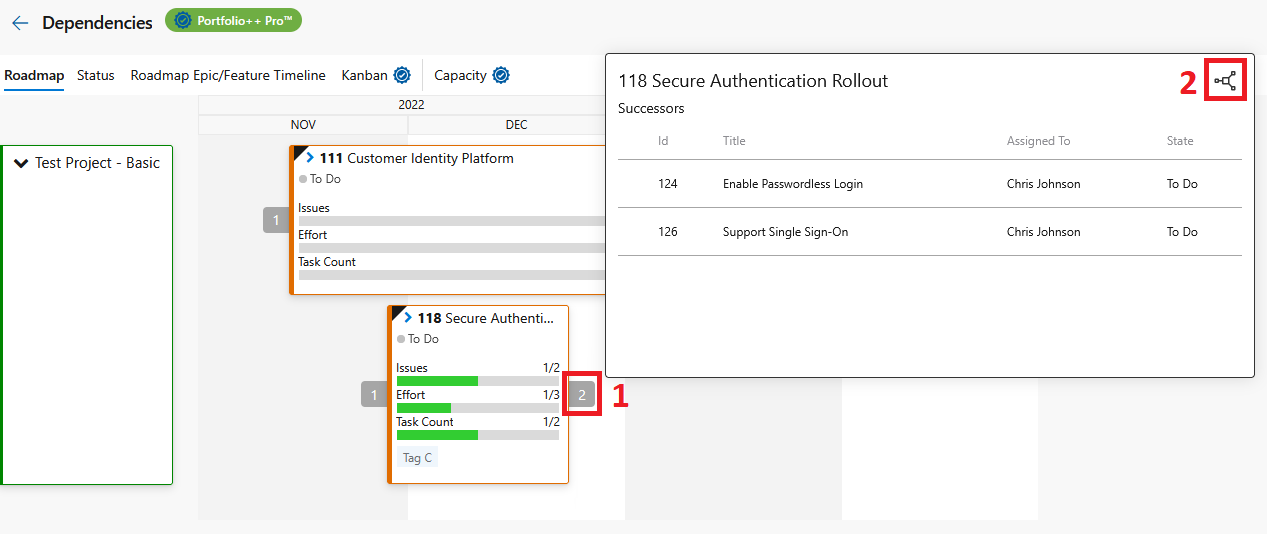
When enabled, Work Items with dependencies display a dependency indicator showing the number of direct predecessors or successors.
- Click the predecessor or successor indicator on a Work Item.
- Click the Dependency Map icon in the top-right corner of the popup.
The Dependency Map will open with the selected Work Item centered in the diagram.
Understanding Dependencies
Dependency Map displays:
- The selected Work Item is displayed in the center and highlighted by filling the background with its border color.
- Direct predecessors to the left, including all upstream dependencies.
- Direct successors to the right, including all downstream dependencies.
To keep the view focused and easy to understand, the following relationships are not displayed:
- Successors of predecessors.
- Predecessors of successors.
Dependency arrows indicate the direction of dependency between Work Items.
Dependency Map is focused on the selected Work Item and its dependency chain. Relationships between predecessors and successors that do not directly contribute to that chain are intentionally excluded to reduce visual clutter.
Work Item Cards
Cards use the same configuration as Roadmap cards and support the following Roadmap Options:
- Core Fields (ID, State, Tags, Assigned To)
- Additional Metrics
- Styles
- Tag Colors
Dependency Validation
Dependency Map validates dependency sequencing using the configured Roadmap build and date preferences.
Validation includes:
- Error indicators for Work Items with missing start or end dates.
- Red connection lines when a predecessor's end date is after its successor's start date.
- Clicking displays the affected work items, project names, and scheduling dates.
- Green connection lines when a predecessor is completed, indicating its successors are ready to be worked on.
Navigation
Dependency Maps can be navigated using your mouse or the controls in the bottom-left corner of the view.
- Pan: Click and drag anywhere on the canvas.
- Zoom In: Increase the zoom level to view Work Item details more clearly.
- Zoom Out: Decrease the zoom level to view more of the dependency chain at once.
- Fit to Screen: Automatically adjust the view to display all visible Work Items within the available space.
Opening Work Items
Work Item titles are clickable links.
Clicking a title opens the corresponding Azure DevOps Work Item, allowing you to quickly review details or make updates without needing to search for the item manually.
Cross-Project Dependencies
Dependency Map supports dependencies across multiple Azure DevOps Projects.
When a dependency exists in another Project and you have access to that Project, the Work Item will be displayed normally within the Dependency Map.
Snapshot
Click the Snapshot icon in the top right to capture the current Dependency Map as an image.
Snapshots are exported as PNG files and can be shared with stakeholders, included in documentation, or attached to work items and discussions.
Warning Indicator
A warning message is displayed when a dependency references a Work Item that cannot be loaded.
This occurs when a dependency exists in another Project that you do not have permission to access.
The warning includes the IDs of any Work Items that could not be displayed so administrators can verify permissions or investigate missing dependencies.