Columns
Overview
Columns allow you to configure how your Kanban view displays Work Items. Column settings are configured independently for each Work Item Type, allowing different Work Item Types to use different column order, visibility settings, and grouping options.
By customizing columns, you can focus on the most relevant States or State Categories, control visibility, and manage large sets of Work Items efficiently.
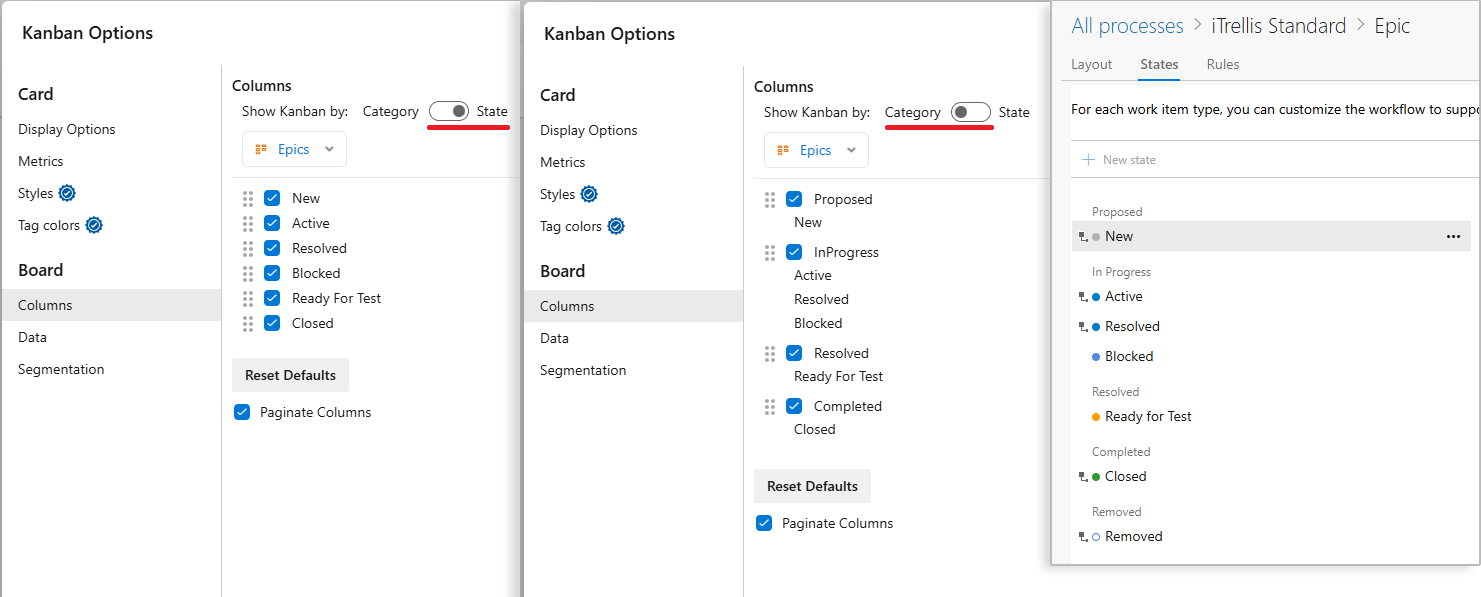
Column Options
Configure how your Kanban view displays columns. Includes custom states defined in customized Azure DevOps process templates.
Example: In the image above, Ready For Test is a custom state.
- Show Kanban By: Choose how columns are grouped for the selected Work Item Type.
- State (default): Shows a column for each Work Item State.
- Category: Groups Work Item States by their State Category.
- Checkbox: Show or hide the current column.
- Reorder: Drag the ⠿ icon to rearrange columns.
- Reset Defaults: Restores the default column order and visibility selections for the selected Work Item Type.
- Paginate Columns: Displays the first 50 items in a column. Click Show more items to load 50 additional items at a time.