Styles
Overview
Styling Rules allow you to visually highlight Work Items by applying colors based on field values. This helps teams quickly identify important items such as high priority work, blocked tasks, or critical bugs without needing to open each Work Item.
Cards automatically update their appearance when they meet the defined criteria, making it easier to scan and prioritize work at a glance.
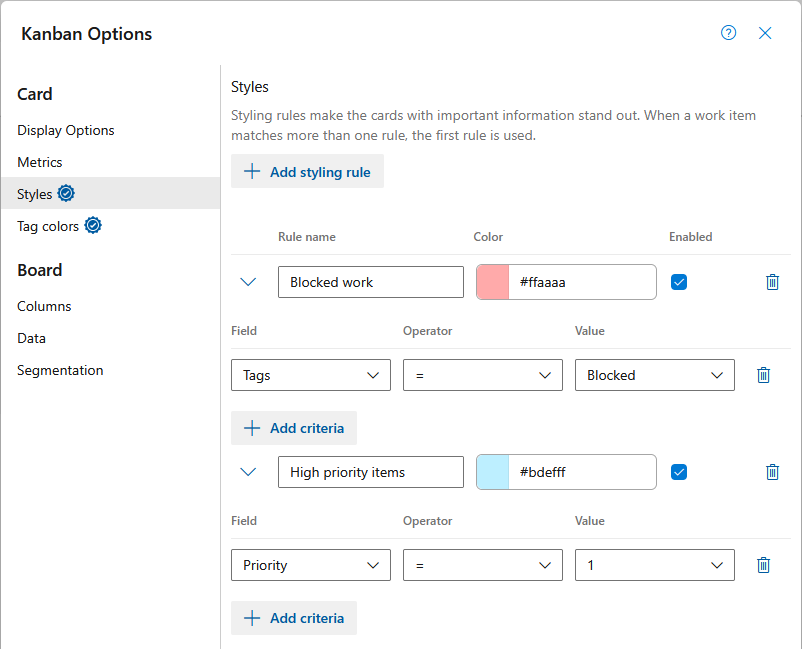
Create Styling Rules
To create a new styling rule:
- Open the options.
- Select Styles
- Click Add styling rule.
- Choose a card color and define your criteria.
- Click OK to save
Manage Rules
After creating rules, you can manage them directly from the Styles panel:
- Disable (Hide) a rule to temporarily prevent it from applying without deleting it
- Delete a rule to permanently remove it
Disabling a rule is useful for testing or temporarily removing visual noise without losing configuration.
Criteria Rules
When defining criteria, keep the following in mind:
- All clauses use AND logic
- Rules are evaluated in the order they are listed
- Higher rules take precedence over lower ones
Common Scenarios
| Scenario | Criteria Example |
|---|---|
| Feature area focus | Area Path Under Fabrikam\Mobile |
| Blocked work | Blocked = Yes |
| High priority items | Priority = 1 |
| Critical bugs | Severity = 1 - Critical AND Work Item Type = Bug |
| Large work items | Story Points >= 20 |
| Overdue items | Target Date < @Today |
| Due soon items | Target Date <= @Today + 7 |
Field Suggestions
When configuring criteria, field value suggestions may appear as you type.
- Suggestions are populated from Work Item data currently loaded in the Roadmap
- Fields must be added to Metrics or Styles before their data is available
- If a field was recently added, the Roadmap may need to be reloaded to fetch its data
If suggestions are missing, ensure the field exists on Work Items and has been loaded into the view.